.png)
Varonis Threat Labs identified a credential-phishing technique we call TrustSink. It turns a trusted external authentication provider into a persistent credential trap within a legitimate sign-in flow.
While the technique can work in any provider, we demonstrated TrustSink end-to-end using Microsoft Entra. An attacker with high privileges can register a rogue External Authentication Method (EAM) and place a convincing password page inside the legitimate sign-in flow. The page captures the password in plaintext while the provider returns a valid signed token, completing the login without an error.
In our test tenant, every sign-in completed normally while our server received passwords with timestamps and source IP addresses. Resetting a captured password did not remove the rogue provider. It remained in the authentication flow and captured the replacement password at the user’s next sign-in.
We are sharing this research as a warning to defenders, and to help IT and security teams detect unauthorized changes to authentication infrastructure and remove rogue providers before resetting affected credentials.
TrustSink builds on a trust boundary highlighted by Dirk-jan Mollema in his x33fcon 2025 talk, “Bringing Your Own Identity in Entra ID.” His research showed how a rogue registered EAM provider could be used to bypass MFA by returning a signed JWT without performing a real authentication check.
Our research uses that same trust boundary for a different objective: capturing plaintext passwords. We focus on the provider-controlled page the user sees, which can resemble a Microsoft password prompt and be used to collect the password before the provider completes sign-in with a signed token.
TrustSink is a clever workaround for authentication. If we can’t trust authenticator apps, what can we trust?

Building the rogue provider
We first built the provider by hand: a minimal OpenID Connect (OIDC) server written in Python with FastAPI. It has two jobs that pull in opposite directions.
- To the user, it must look exactly like the official Microsoft page.
- To Entra, it must look exactly like a compliant EAM provider.
Both of these jobs play out in a single sign-in.
The user enters their real Microsoft password. MFA triggers, and Entra sends their browser to our provider for the second check. From that moment, the two audiences see different things. The user sees a copy of Microsoft’s password page, and whatever they type, our server keeps. Entra sees a signed token claiming the check passed, and the signature validates, so the sign-in completes.
Four endpoints in total carry the loop (two for each audience).
1. The discovery document
This is how Entra learns the provider exists. Its /.well-known/openid-configuration URL is registered in the Authentication Methods Policy and fetched before any user is redirected. Our implementation returns the minimum metadata Entra needs: the issuer, authorization endpoint, JWKS URI, and supported signing algorithm (RS256). If the document is unreachable or invalid, Entra rejects the provider and the user sees an error page.
The discovery document tells Entra where the provider lives.
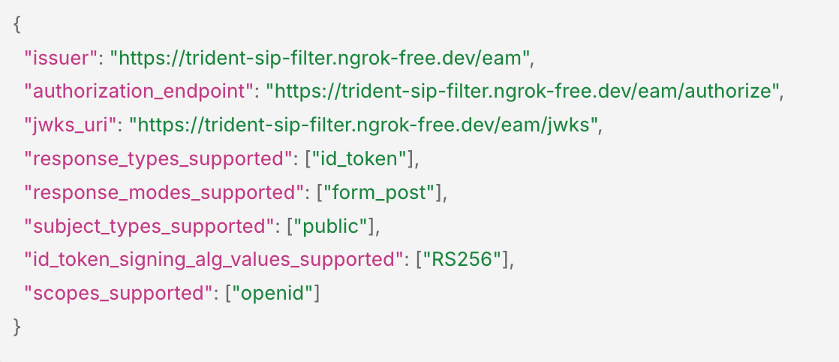
The discovery document tells Entra where the provider lives.
2. The public key
This is how Entra believes the provider. The /jwks endpoint serves an RSA public key from a self-signed pair we generate at first launch. Entra retrieves this key to validate the tokens the provider returns and caches it, so fetches follow Microsoft's metadata refresh cycle rather than individual sign-ins. Microsoft checks only that the key ID matches and the signature is valid. It does not check the certificate chain or where the key came from.
The public key Entra fetches to validate the provider's tokens.
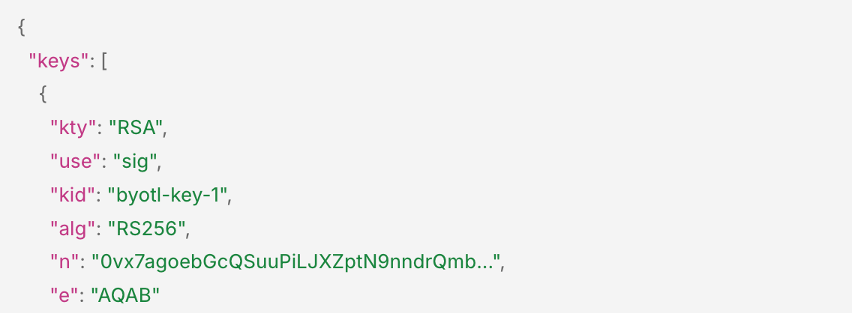
The public key Entra fetches to validate the provider's tokens.
3. The page the user sees
This is where the trap sits. When MFA triggers, Entra redirects the browser to /eam/authorize and sends along everything we need to answer: an id_token_hint identifying the user, a nonce tying the response to this request, and the callback URI to post back to. Our server replies with a pixel-accurate copy of Microsoft’s own password prompt.
A pixel-accurate copy of Microsoft's own sign-in page.
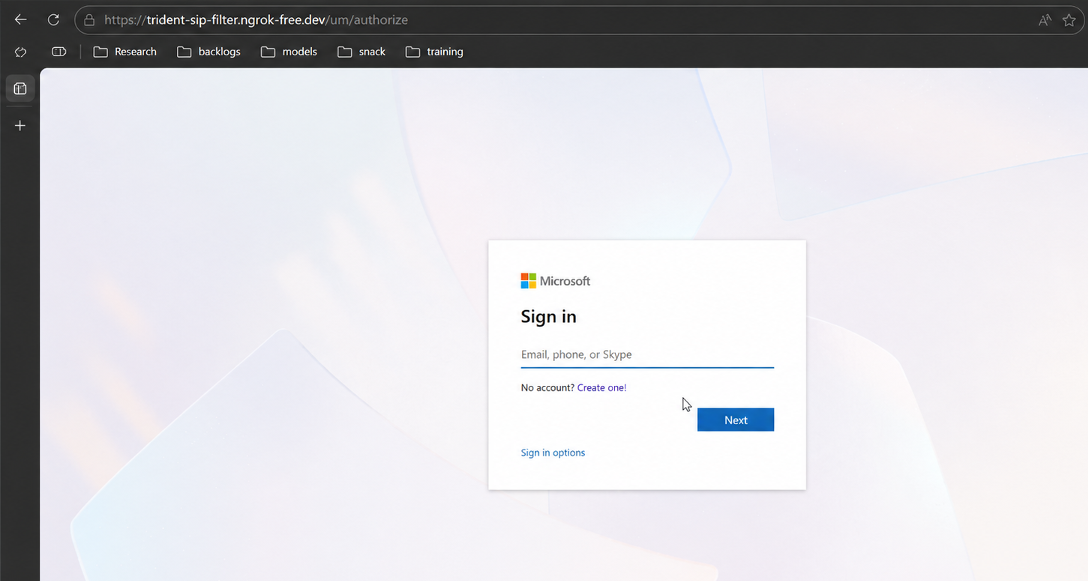
A pixel-accurate copy of Microsoft's own sign-in page.
4. The capture
This is where the password lands. When the user submits the form, /eam/complete writes it to a local credentials file with a timestamp and source IP. Then the server builds Microsoft's answer. It takes the user's identifier from the id_token_hint (Microsoft sends it deliberately expired. It takes the user’s identifier from the id_token_hint. Although Microsoft deliberately sends this token expired, our provider still validates its signature, issuer, audience, and relevant claims before using it) and adds the two claims that tell Entra a hardware-key check succeeded: acr: "possessionorinherence" and amr: ["hwk"]. It signs the token with the provider's private key, and an auto-submitting form posts it to Microsoft's callback.
The user's identity arrives, and a signed token leaves.
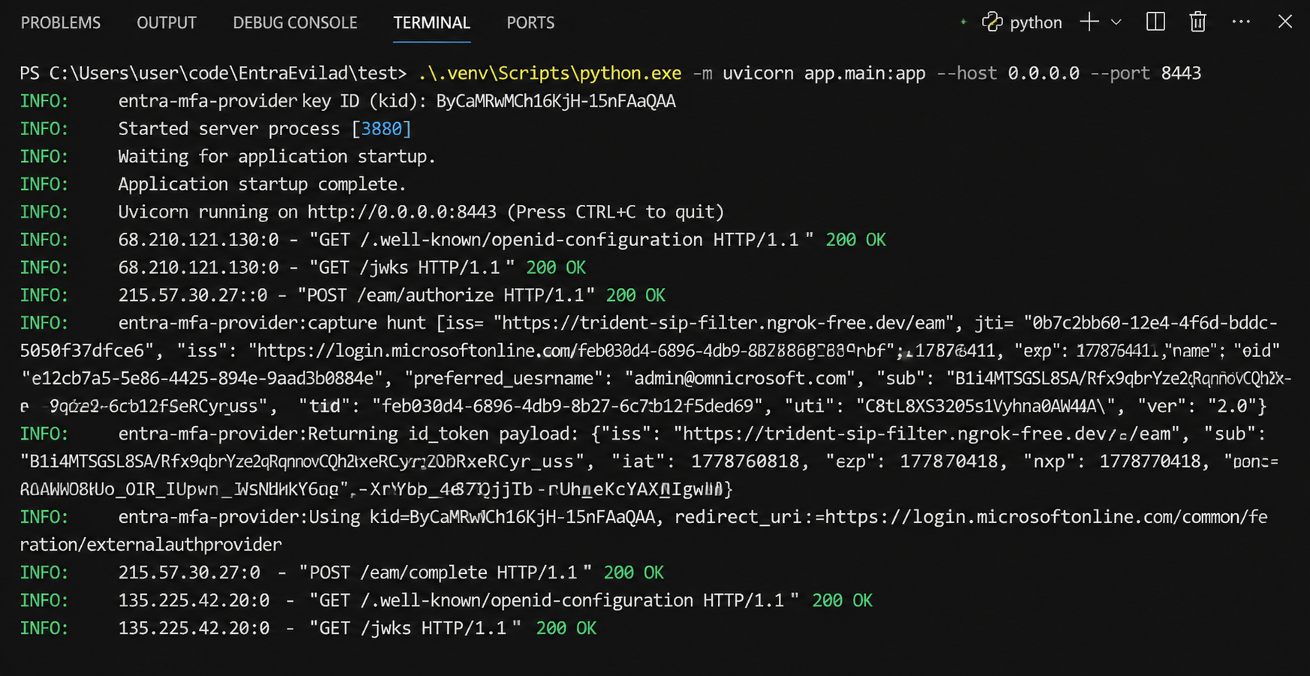
The user's identity arrives, and a signed token leaves.
What the user sees
The attack inserts one extra step into a routine the user has run hundreds of times. From their side of the screen, the sign-in looks like this.
- They enter their email at login.microsoftonline.com.
- They enter their password. This one goes to Microsoft.
- MFA is triggered.
- The browser lands on what looks like another Microsoft password page.
- They enter their password again. This one goes to us.
- The page moves on by itself.
- They arrive at their application. Sign-in complete, no errors.
The page at step four is a pixel-accurate copy of the real thing. Same fonts, same layout, same blue button.
It also arrives at the one moment a password request makes sense: the user has just typed their real password on Microsoft’s domain, so a second prompt inside the same flow does not raise suspicion the way an emailed link would.
From the user’s perspective, they signed in normally.
From proof of concept to repeatable trap
Disclaimer: This proof of concept is provided strictly for educational and authorized security research purposes to help defenders understand and detect this attack vector. Do not use this tool against any environment without explicit written authorization.
At this point, everything has run successfully in our own tenant. An attacker in the real world would need it to work on every sign-in, for every targeted user, for as long as the provider stays registered. That takes two things: the privileges to register it, and a public address for it.
The privileges are the tricky part. Registering an external method means changing the Authentication Methods Policy, creating an application, a service principal, and a consent grant. Those actions require a Global Administrator or Authentication Policy Administrator account. TrustSink is therefore a post-compromise technique. It begins after an attacker has taken a privileged identity and decides to turn that one account into a standing credential trap.
The address is simpler. Entra fetches the discovery document and signing keys over HTTPS, and the victim's browser is sent to the same place during the redirect, so the provider needs a public URL. In our lab, that was ngrok, a tunneling service that exposes a local server behind a public HTTPS address.
Ngrok exposes the local provider behind one public HTTPS address.
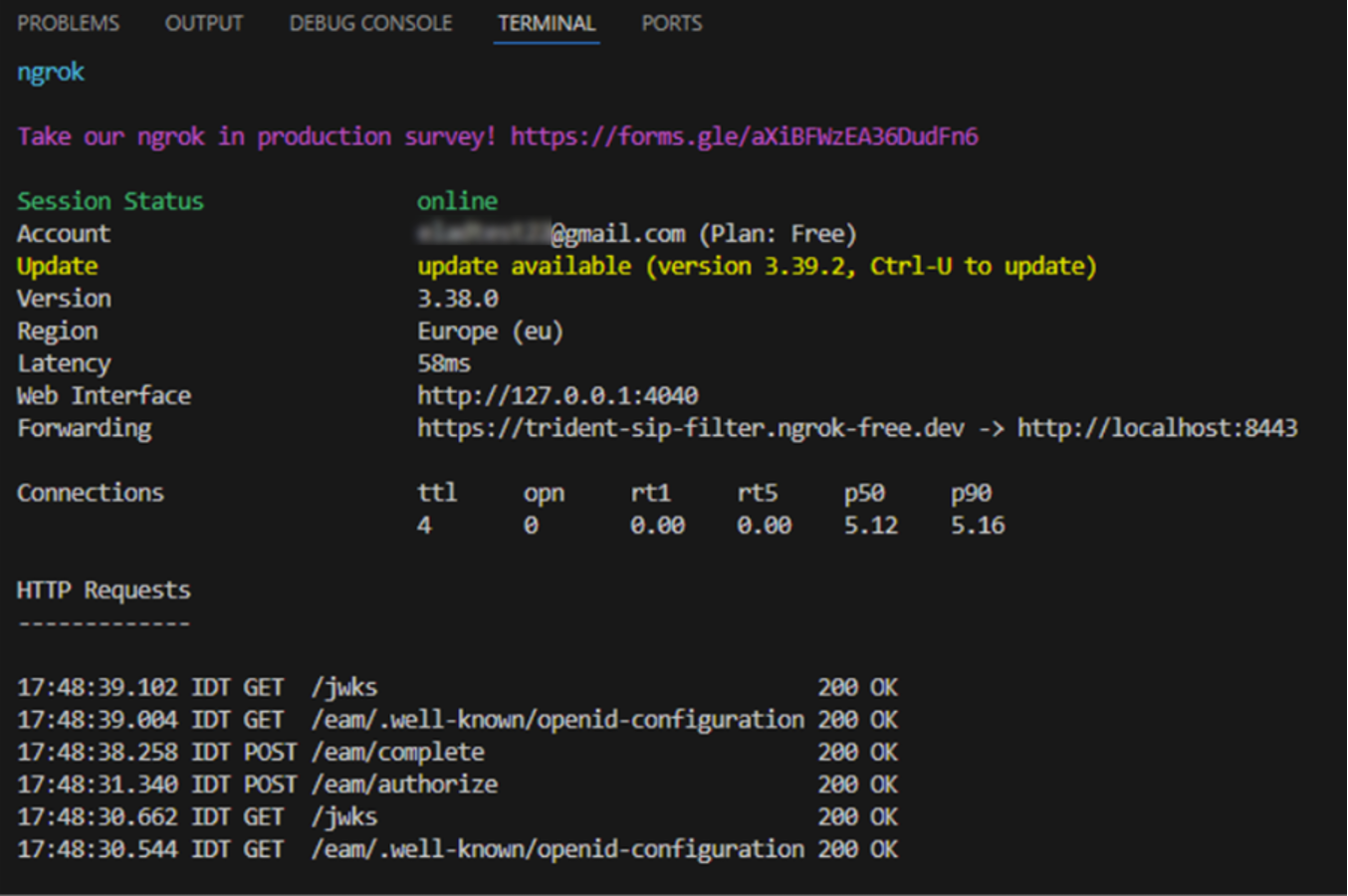
Ngrok exposes the local provider behind one public HTTPS address.
A real attacker would choose something other than ngrok, perhaps a cloud VM behind something like auth-verify.microsoft-sso.com or a VPS with a free certificate. The domain appears in the address bar for a moment during the redirect, and most users never look. A well-chosen one is the difference between blending in and an analyst spotting an unfamiliar issuer in proxy logs.
Manual setup
In order to verify this setup, we ran the deployment through the Entra portal manually because a slow run shows exactly which artifacts the attack creates.
- We first ran the FastAPI server locally and exposed it through ngrok, giving it the public HTTPS address (https://trident-sip-filter.ngrok-free.dev) that Entra and the victim's browser would both use.
- In App registrations, we created an application named something innocuous (for example, "Security Verification"), scoped to accounts in this organizational directory only, set its Web redirect URI to Microsoft's external authentication callback (https://login.microsoftonline.com/common/federation/externalauthprovider), and enabled ID token issuance under Implicit grant.
- We created a Service Principal for the app. This happens automatically when the application is registered in the same tenant. We verified it existed under Enterprise applications.
- We added the delegated OpenID and profile permissions and granted admin consent so no consent prompt appears during the redirect.
- In the Authentication Methods Policy, we added the provider under a display name chosen to blend in (ours was "User's Password"), entered the application (client) ID of the app registered in step 2, pointed the Discovery URL at https://trident-sip-filter.ngrok-free.dev/eam/.well-known/openid-configuration, and scoped it to a security group holding one test account.
- We confirmed a Conditional Access policy required MFA for that group across all cloud apps. The trap was live.
- We signed in as the target user. After entering the real password, Entra redirected us to our server, where the fake password prompt caught the second entry. We signed the JWT and posted it back, and the sign-in completed normally.
You can watch the manual deployment here.
Automated deployment
After the manual step, it was clear that the methodology worked, but it took a few minutes of clicking and left too much room for error. As a result, we packaged the same sequence of steps into a Python script (deploy.py) that drives it through Microsoft Graph in just one command:
- For authentication, the script tries the Azure CLI first, which avoids creating a new sign-in event, and falls back to device code flow with Azure PowerShell’s client ID, which is pre-consented in most tenants.
- It creates the application via POST /v1.0/applications with the correct redirect URI and required openid/profile permissions, then creates the Service Principal via POST /v1.0/servicePrincipals, making the app usable in the tenant.
- It grants tenant-wide consent via POST /v1.0/oauth2PermissionGrants, scoped to AllPrincipals for openid and profile, so victims never see a consent prompt.
- It registers the external method via POST /beta/policies/authenticationMethodsPolicy/authenticationMethodConfigurations, adding the provider to the Authentication Methods Policy scoped to the target group.
- It saves everything it created to deploy_state.json, and rolls back automatically if any step fails. A companion script, cleanup_eam.py, reverses a full deployment in order, deleting the EAM config, removing admin consent, deleting the service principal, then the app registration, and only clears the state file once teardown fully succeeds.
You can watch the automated deployment here.
.png)
How to detect and mitigate TrustSink
Most stages of a TrustSink deployment leave a trace in the logs. Registering the provider writes the method configuration into the Authentication Methods Policy, and an automated run adds its own trail, creating the application, the service principal, and the consent grant back-to-back through scripted Graph calls.
Five places are worth watching:
1. Authentication Methods Policy changes
Registering the rogue provider wrote three audit events in sequence: the external method added, the user object updated, and the method confirmed as registered. It also appended a FIDO key to the test user’s SearchableDeviceKey property, a side effect we did not trigger deliberately. Any new externalAuthenticationMethodConfiguration entry outside a planned rollout is the clearest early warning.
Three audit events fire as the rogue provider is registered.
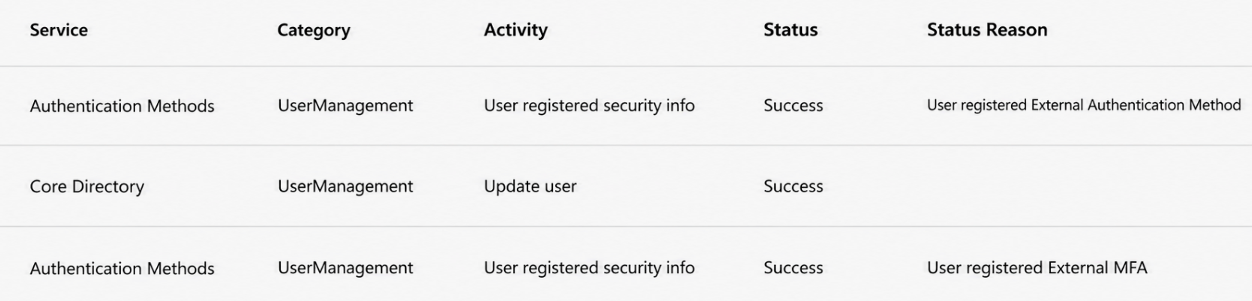
Three audit events fire as the rogue provider is registered.
A FIDO key appended to the test user's SearchableDeviceKey property.
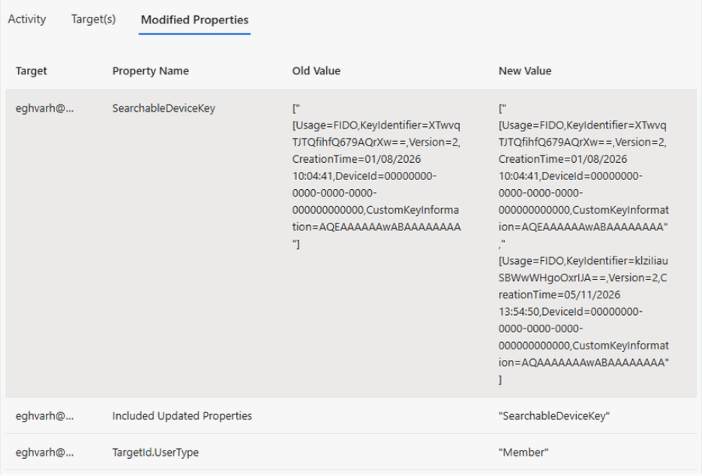
A FIDO key appended to the test user's SearchableDeviceKey property.
2. Application registrations
The application we created used Microsoft’s external authentication callback, login.microsoftonline.com/common/federation/externalauthprovider, as its redirect URI, requested openid and profile permissions, and carried a display name chosen to blend in with a sign-in audience limited to the organization. Any application with no clear business purpose registering itself into the authentication path deserves review.
The app registration records the attacker's redirect URI.
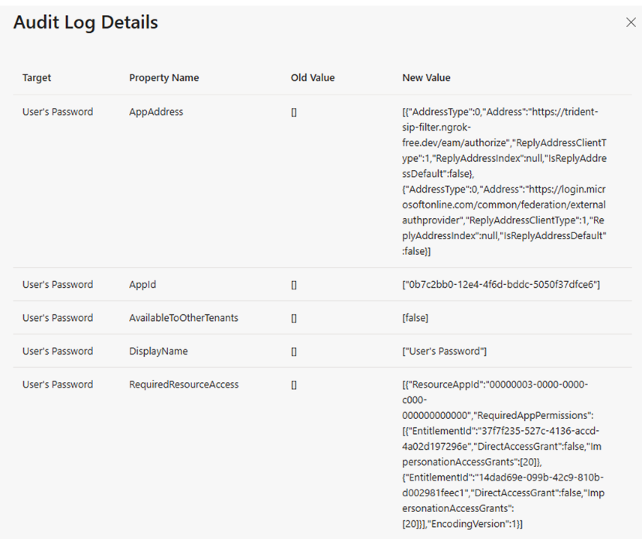
The app registration records the attacker's redirect URI.
3. Service principals
Registering the application also created a service principal, and its creation event carries the specifics: the app ID, the sign-in audience, the reply URLs pointing at infrastructure the attacker controls (in our test, an ngrok domain, not a Microsoft one), and the key material registered for token signing. A service principal holding credentials for an application you do not recognize is part of the same chain and appears in the same audit window.
The service principal records reply URLs and key material.
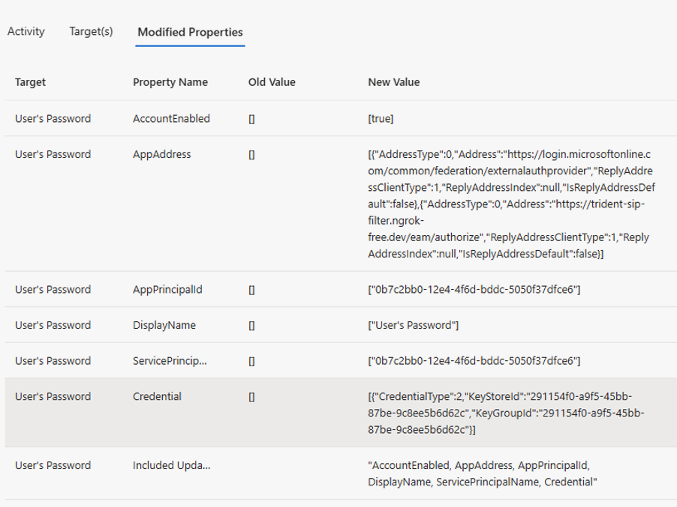
The service principal records reply URLs and key material.
4. Sign-in logs
Every sign-in our provider handled recorded its issuer URL, and the claims are where the giveaway lives. A genuine hardware-key prompt produces them after a real ceremony. Ours were hardcoded as acr: "possessionorinherence" and amr: ["hwk"]. The record shows the first factor satisfied by token claims and the MFA requirement satisfied by the external provider. An unfamiliar issuer carrying hwk is the most reliable signal, because the provider cannot avoid leaving it.
First factor by token claims, MFA by the external provider.
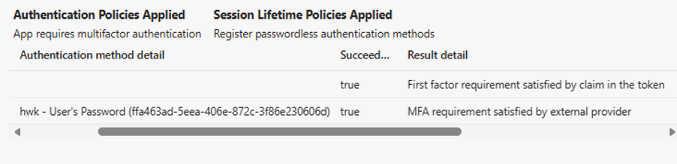
First factor by token claims, MFA by the external provider.
5. Automated tooling
Our deployment tool stamped every Graph call with python-requests/2.33.1, and the events Add application, Add service principal, and Add delegated permission grant fired within seconds of each other. Real administrative work comes from the Azure portal or PowerShell, at human pace. The header is trivial to change, so treat it as a lead, not a signature.
Figure 12. Three Graph events, seconds apart, stamped python-requests/2.33.1
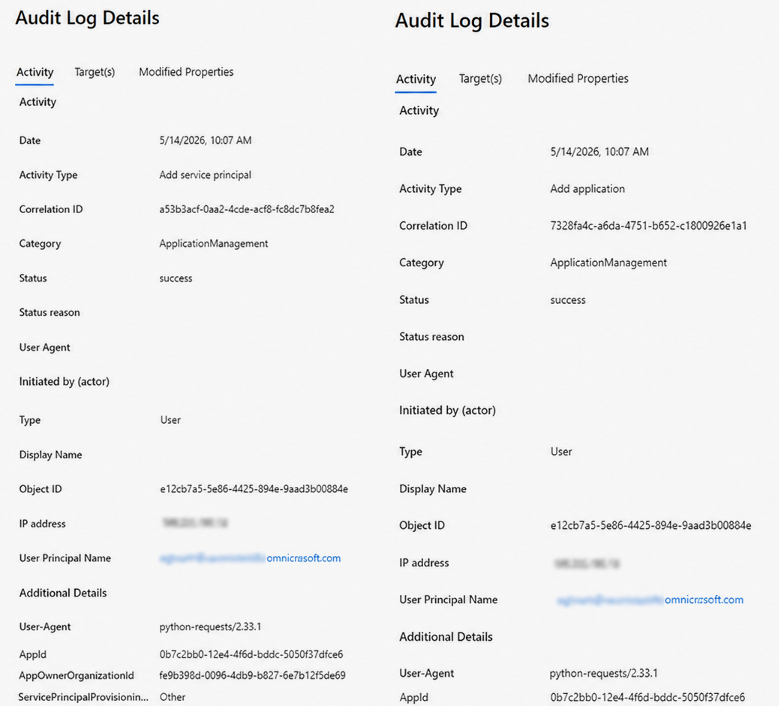
Figure 12. Three Graph events, seconds apart, stamped python-requests/2.33.1
Mitigation
Resetting the password doesn't work with TrustSink. The old credential dies, but the provider is still live, so it harvests the replacement on the next sign-in. You have to remove the provider, not only rotate the credential.
|
Area |
Action |
|---|---|
|
Provider |
Disable the external method in the Authentication Methods Policy and remove its group assignments before any password reset |
|
Application artifacts |
Remove the app registration, the service principal, the signing keys, the openid and profile consent grant, and the callback redirect URI |
|
Accounts |
Use the sign-in logs to identify every user who authenticated through the provider, reset their credentials, and review what those accounts did afterward |
|
Conditional Access |
Alert on policies modified to target new groups, and review any policy edited after a suspicious registration |
|
Authentication methods |
Move users to FIDO2 or Windows Hello for Business, so a password prompt during MFA reads as suspicious |
|
Privileged access |
Restrict standing Global Administrator and Authentication Policy Administrator roles, the two roles that can alter this path |
The bottom line
The TrustSink technique exists because Entra trusts a signed token from a registered EAM without verifying what the provider shows the user.
Microsoft hands a third party the one screen every user trusts, and never checks what that party shows or returns. Controlling what the user sees, combined with automatic validation of whatever comes back, is all that was needed. The result was a credential-capture mechanism that operated within normal sign-ins.
That mechanism has a cost on both sides. The entry cost is high because an attacker needs a privileged account before any of this works. What they get in return is a standing trap that captures plaintext passwords in real time and stays in place when those passwords are reset.
For a red team, that is persistence worth having. For a blue team, it is one more reason to watch identity infrastructure changes as closely as the sign-ins themselves.